

3.3 Setup
3.3.1 Hardware Setup
Supported Devices
OpenTest supports DAQ devices via multiple protocols including openDAQ, ASIO, WASAPI, MME, Core Audio, and NI DAQmx. Verified compatible hardware include:
- SonoDAQ
- CRY6151B
- CRY2708、CRY2716
- Dewesoft-XHS
- NI-USB-4431
- Echo AIO Test System
- Built-in sound cards (WASAPI-compatible)
Scan Connected Devices
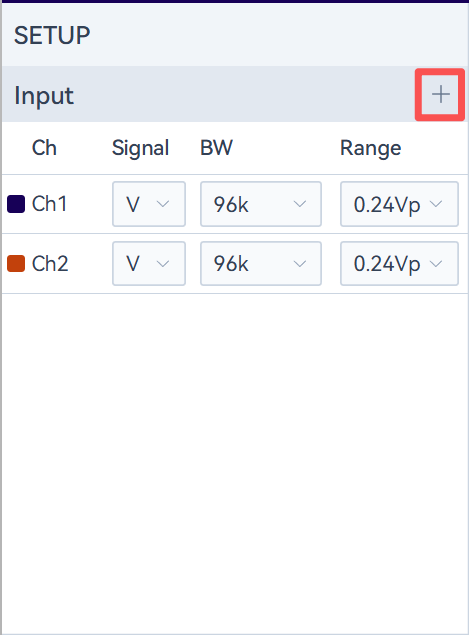
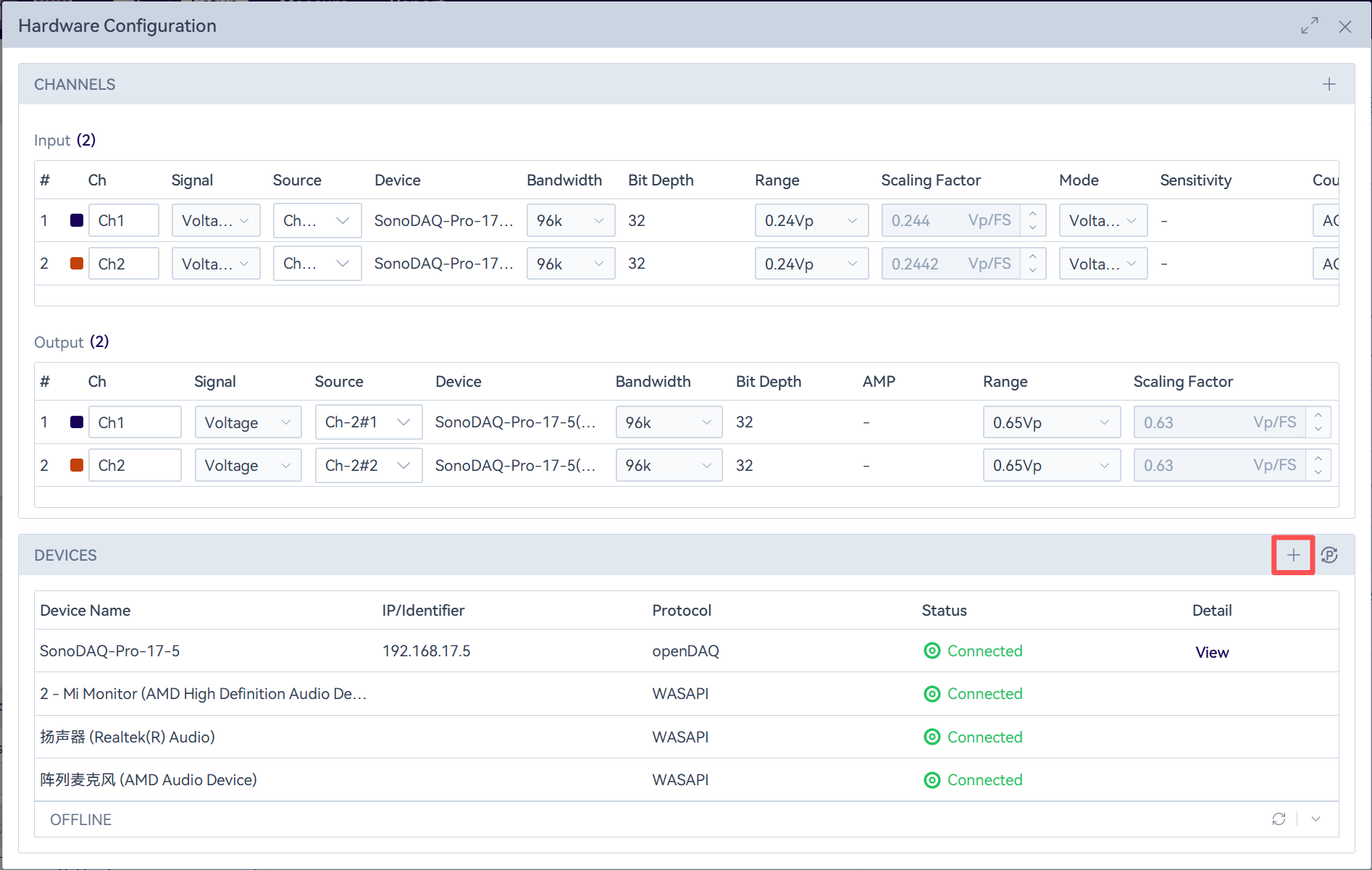
Click the " " icon in the upper-right corner of the settings bar. The software will automatically scan the devices currently connected (currently supports access via openDAQ, WASAPI, ASIO, and NI DAQmx drivers). After the scan, a pop-up window will show newly connected devices and disconnected devices. Click the "
 " icon on the right side of the device list to manually trigger a scan or manually add a device connected over the network.
Notes: When using the scan function to discover devices, you need to ensure that the network-connected device and the PC are on the same subnet.
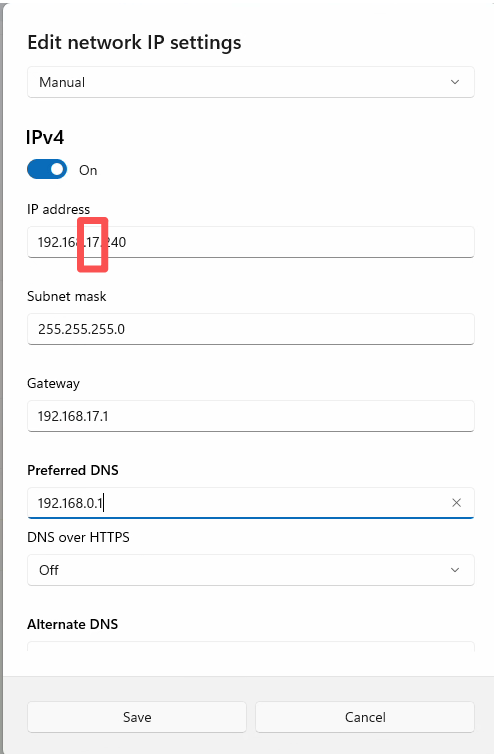
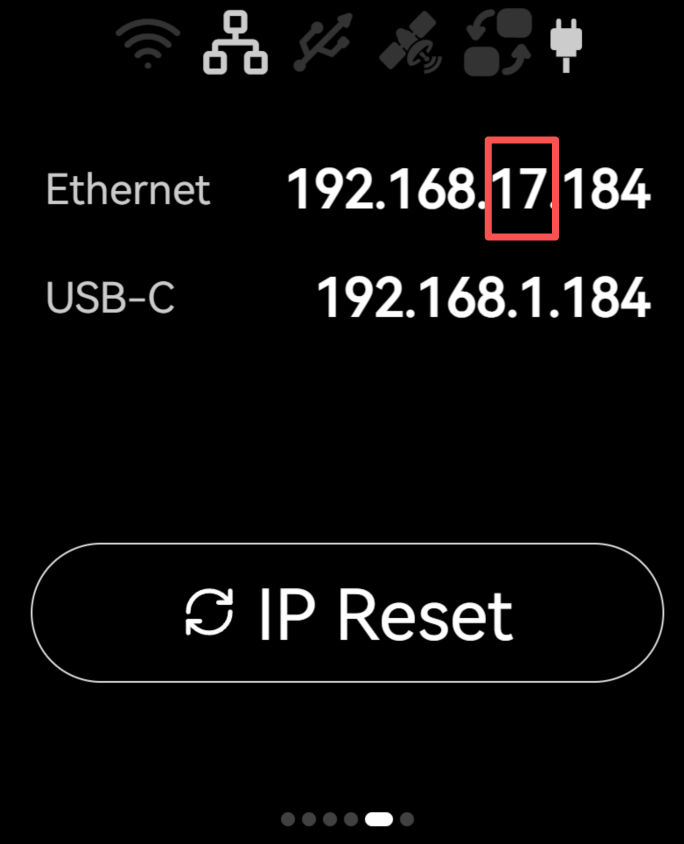
Configure the PC as follows:
- Open the Ethernet settings.
- Change the IP address so that it is in the same subnet as the device.
Manually Add Network Devices
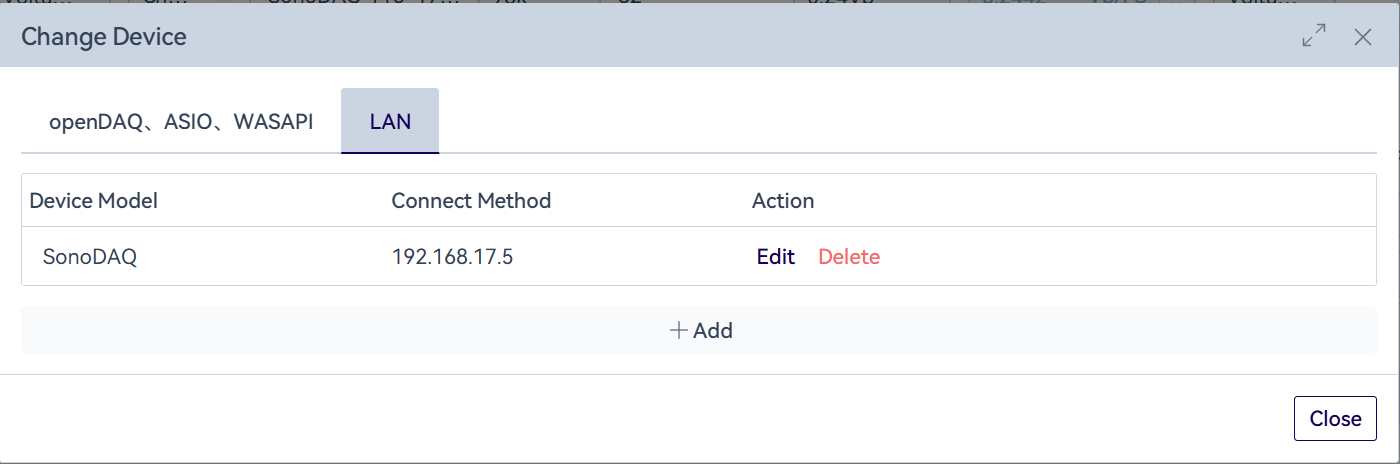
In the hardware configuration pop-up, click the " " icon on the right side of the device list. The dialog will switch to the "LAN" tab, where you can add, delete, or edit network-connected devices (currently only CRY2708 and CRY2716 are supported). Note: When adding or editing a device, make sure the device is online; otherwise the operation will fail.
Refresh to Get the Device Status
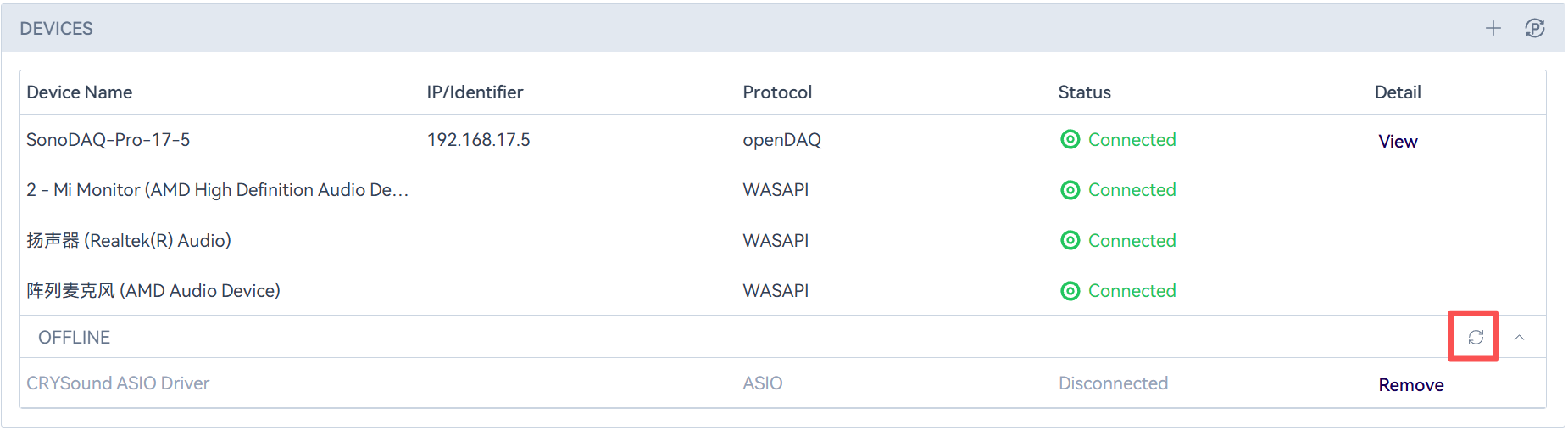
In the hardware configuration dialog, the system refreshes device status every minute.
To trigger it manually, click the " " icon to the right of an offline device in the device list. This will immediately refresh the status of all devices in the list, reconnect network-connected devices that have gone offline, and update the SonoDAQ module information.
